How to Use Canva: A Complete Beginner’s Guide (2026)
To use Canva, sign up for a free account at canva.com, click Create a design, pick what you want to make (Instagram post, presentation, A4 flyer), choose a template or start blank, then drag elements, text and images onto the canvas. When you are happy, click Share and Download to save the file as a PNG, JPG, PDF or MP4. That is the whole loop. Everything else in this guide is variation on it.
Canva is, in many ways, like a giant box of Lego pieces with a builder’s manual on the side. You do not have to design anything from a blank piece of paper. You pick a kit (the template), swap the pieces you do not like (photos, words, colours), and you are done. After 24 years of training in Singapore, I will say this: Canva is the easiest design tool I have ever had to teach. Most students produce a finished Instagram post in 30 minutes. Some get to a full slide deck on day one.
This guide walks you through everything end-to-end. What Canva is and where it actually fits. How to sign up and read the interface. How to build your first design in seven steps. How to work with templates and frames. How to edit photos and remove backgrounds. How the new Magic Design AI features work in 2026. How to create video and animations. What is different on the mobile app. And the two productivity features (Bulk Create and Whiteboard) that almost nobody discovers on their own. It assumes you have never opened Canva before, and it assumes you want to come out the other side actually able to design something useful for work.
What Canva is — and what people actually use it for
Canva is a browser-based graphic design platform. Instead of building a design from a blank page the way you would in Photoshop or Illustrator, you start from one of more than a million pre-made templates — Instagram posts, presentations, posters, business cards, resumes, certificates, videos, flyers, brochures, websites — and you replace the text, photos and colours with your own. The whole workflow is drag-and-drop. There are no layers in the Photoshop sense, no pen tool, no vector path editing. If you can use PowerPoint, you can use Canva.
Most people use Canva for one of five jobs. Social media posts (Instagram, LinkedIn, Facebook, TikTok). Presentations and slide decks. Business documents (invoices, certificates, reports, name cards). Marketing collateral (flyers, posters, brochures, email graphics). And short-form video (Reels, Stories, YouTube Shorts). It also handles photo editing, PDF editing, mood boards, whiteboard ideation and basic websites — but those are the long-tail use cases, not the main draw.
It is worth being honest about what Canva is not for. It is not a heavy photo retouching tool — Photoshop still wins on fine compositing, skin work and complex masks. It is not a vector logo finalisation tool — Illustrator wins on precise paths and final brand identity files. It is not a print-shop CMYK prepress tool — Canva exports PDF Print, but a serious print job for offset still wants InDesign. For everyday business and marketing design — the 95 per cent of what most teams in Singapore actually need — Canva is faster than any of those, and the output is professional enough that nobody downstream notices it was not made by a designer.
Sign up and the Canva interface in 5 minutes

Go to canva.com. Click Sign up. You can register with an email address and password, or sign in with Google, Microsoft or Apple — using Google is the fastest path because Canva inherits your profile photo and skips the verification step. The free plan is available the moment you sign up. No credit card. No trial expiry.
Canva will ask a few onboarding questions. What you want to use Canva for (work, school, personal, non-profit). What kind of designs you make most often. Whether you want to join a team. These choices only affect which template categories Canva surfaces on your home page. None of them are permanent and all of them can be changed later in Settings.
The Free vs Pro decision can wait until you have used Canva for a week. For reference: Canva Pro in Singapore is around S$17.99 per month, or S$179.99 paid annually, on an individual plan, and it is GST-claimable for businesses. The free plan covers most everyday design. Pro adds Background Remover, Magic Resize, the premium template library, multiple Brand Kits, and higher AI credit limits. If you are not sure yet, our Canva Design Masterclass covers both Free and Pro workflows so you can decide based on real usage, not marketing pages.
Once you are signed in, the left side menu has five main tabs you should know:
- Home — Canva’s landing page inside the app. Shows recent designs and quick-launch buttons for common design types (Instagram Story, Presentation, Document, Logo, Resume, Video).
- Projects — every design you have ever created, plus uploaded folders and shared files. Use filters (Owner, Type, Newest edited) and folders to keep this tidy once you have more than 20 designs.
- Templates — the full template browser, searchable by keyword. Templates with a small crown icon at the bottom-right corner are Pro only.
- Brand — the Brand Hub, where you store brand colours, fonts, logos and templates. The free plan allows one Brand Kit. Pro allows multiple.
- Apps — third-party app marketplace, integrations (Google Drive, Dropbox, Mailchimp, Notion), and built-in Canva apps like Bulk Create and Magic Charts.
The Create a design button sits above this menu and is accessible from every tab. Click it to open the design-type picker. That is the only button you need to start anything. How good is that?
Your first design in Canva: a 7-step walkthrough
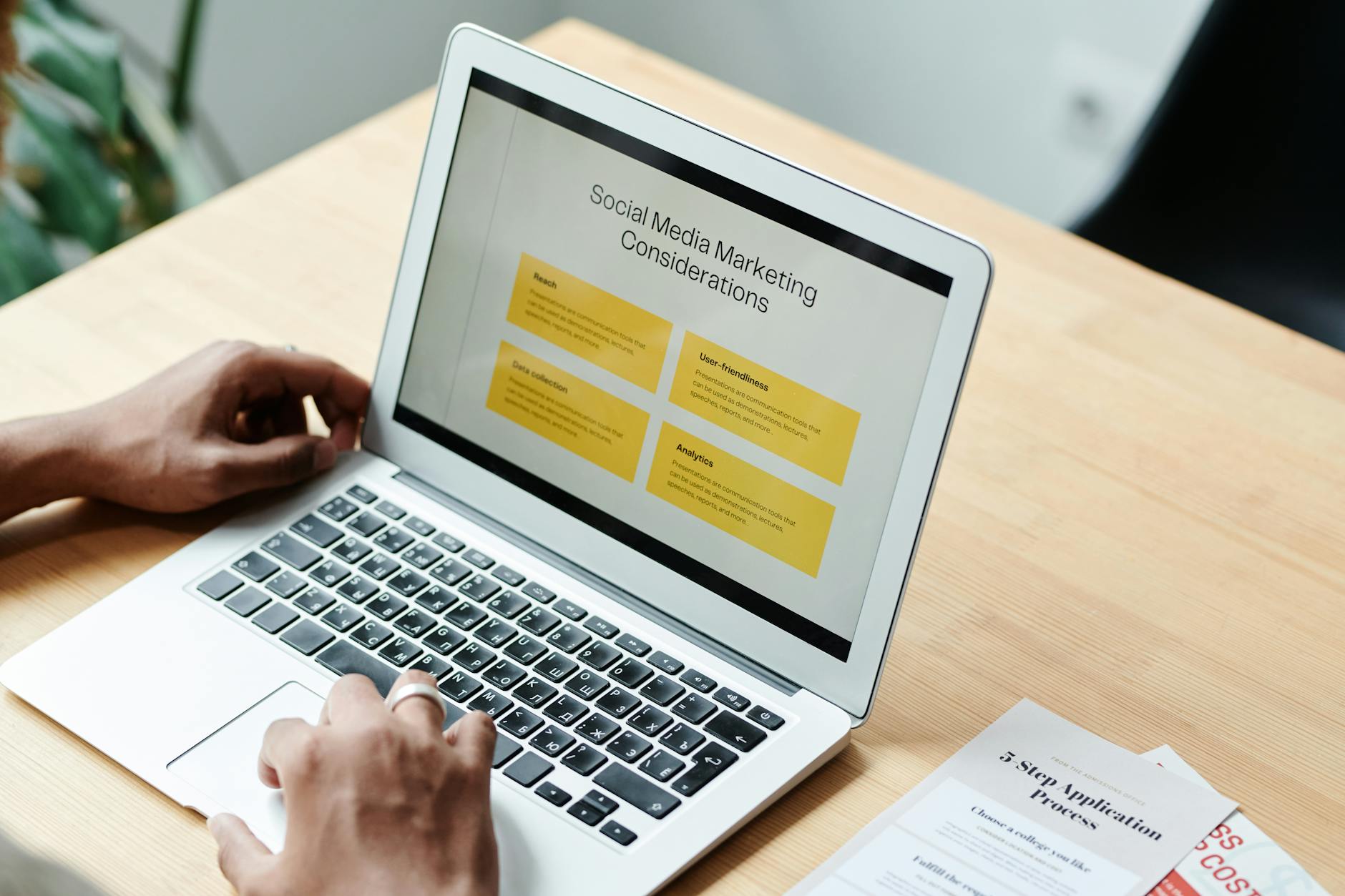
The fastest way to learn Canva is to make one design from start to finish. Here is the full path for a simple Instagram post.
- Click Create a design (top-right of the home page). Pick Instagram Post (Square) from the design-type list. Canva opens a blank 1080 × 1080 px canvas in the editor.
- Open the Templates tab in the editor’s left side panel (the first icon). Scroll, or search for a style — “minimalist quote”, “product launch”, “cafe promotion”. Click any template thumbnail to load it onto the canvas. If you do not like it, click another one. Canva swaps the canvas instantly with no save needed.
- Edit the text. Double-click any text block to enter edit mode, then type your replacement copy. The toolbar at the top of the canvas lets you change the font, size, colour, spacing and alignment. Keep the original font choices for the first pass — designed templates already have a balanced type system, and beginners almost always pick worse fonts in the first week.
- Replace the photo. Click the photo in the template once to select it. Then either drag a new image from the Uploads tab over it (Canva snaps the new photo into the same crop), or click Photos in the left side panel and drag a stock photo over the top.
- Resize and reposition an element. Click any element to select it. Drag the corner handles to resize (Canva preserves the aspect ratio when you drag from a corner). Drag the centre to move. Press Delete to remove.
- Add a new element from the library. Click Elements in the left side panel and search for what you want — “arrow”, “star”, “abstract shape”, “coffee cup”. Click any element to drop it onto the canvas, then resize and recolour it from the top toolbar.
- Click Share, then Download. Pick a file type. PNG for social. PDF Standard for documents. PDF Print for offset printing. MP4 for video. Click Download. The file lands in your browser’s default download folder.
You now have a finished design. The work is auto-saved to the cloud the moment you make a change, which answers the most common first-day support question in every training room I run: “Where did my design go?” Open the Projects tab in the left side menu, and your design is sitting at the top of the list. Click to reopen and continue editing. The first time I see a class realise their design is safe and findable, the room visibly relaxes.
A few editor habits worth picking up early. Cmd + Z (or Ctrl + Z on Windows) undoes any change, and Canva’s undo stack goes back about 100 steps, so you can experiment freely. Hold Shift while clicking multiple elements to select several at once. Press T to add a text box anywhere. Press R for rectangle, L for line. Right-click any element to access the layer order menu — Bring to Front, Send to Back, and so on. These shortcuts make the editor about three times faster than mouse-only operation. Of course your boss will be delighted when the weekly social post takes you 10 minutes instead of an hour.
Templates: how to find, edit and customise them
Templates are the reason Canva exists. There are more than a million of them, organised by design type (Instagram post, presentation, flyer) and by topic (cafe, fitness, education, real estate). A good template selection is the difference between a 45-minute design session and a five-hour one.
The fastest template search workflow has three steps. First, choose the right design type from Create a design — this filters templates to the correct dimensions. Second, use the search bar at the top of the Templates tab with two or three keywords combined (“minimal product launch”, “watercolour wedding”, “tech startup deck”). Third, scan the first row of results — Canva’s relevance ranking is good enough that the right template is almost always in the first five. If it is not, change one keyword and search again rather than scrolling through 200 thumbnails.
The crown icon at the bottom-right of a template thumbnail means the template is Pro only. You can still load it onto the canvas on a free plan to preview, but the export will be watermarked with a “Canva Pro” stamp unless you either upgrade or replace every Pro element on the canvas. About 60 per cent of all templates in 2026 are free. The rest are Pro.
Once a template is loaded, the customisation workflow is the same every time. Replace text. Swap photos. Adjust colours to your brand. Remove anything you do not need. The trick beginners miss is keeping the template’s structure intact while changing every visual element. The design instincts in the template — spacing, balance, font pairing, alignment — are what make it look professional. If you replace one element at a time without disturbing the layout, the result will look designed even if you have never touched a design tool before. The moment you start moving boxes around freely, you lose that benefit. I see this in every classroom: the most confident students touch the layout the most, and their final designs look the worst. The patient ones who respect the template ship better work.
To save a customised design as your own template for reuse, click File > Save as template (Pro feature). The design becomes available in the Templates tab of your own Brand Hub, ready to be used as a starting point for the next design. This is how a marketing team that posts weekly turns a one-off design into a repeatable production line. And the team lead stops being the bottleneck.
Frames, photos and the background remover
Frames are one of Canva’s most underrated features. A frame is a shape — square, circle, heart, hexagon, custom silhouette — that you drag an image into. The image is automatically cropped to the shape of the frame, and you can double-click the image inside the frame to reposition or zoom without breaking the frame’s outline. This is the easiest way to get a circular profile photo, a square Instagram crop, or a decorative shaped photo without any masking work.

To use a frame, click Elements in the left side panel and search for “frame”. Drag any frame onto the canvas. Then drag any photo from the Photos tab or your Uploads tab onto the frame. Canva snaps the photo into the frame the moment it touches the outline. Double-click the photo to fine-tune the position and scale. Extremely easy.
The Background Remover is a one-click tool that erases the background of any photo, leaving the subject on a transparent layer. It works on people, products, animals and most objects with a clear edge. It struggles with hair fly-aways, glass and translucent objects — Canva will still attempt the removal, but expect to do a Magic Eraser touch-up around the edges.
To remove a background, click the photo on the canvas, click Edit in the top toolbar, and choose BG Remover from the side panel. Background Remover is a Pro feature with unlimited use on Pro, and one free use per month on the free plan. For background removal that is more precise — when you want to keep some of the background and remove only specific objects — use Magic Eraser instead, also under Edit. Magic Eraser is a paint-over-it-and-it-disappears tool that genuinely surprises every classroom the first time they try it.
Photo upload is identical to image upload. Open the Uploads tab in the left side panel, click Upload files, and pick the photo from your device. The file uploads to your Canva account and stays there forever — every Canva design you create later has access to the same uploaded photos. You can also drag a photo file directly from your computer’s file browser onto the Canva editor, which uploads it and places it on the canvas in one motion. To replace a photo already on the canvas, drag the new photo over the old one. Canva swaps them and keeps the existing position, size and any cropping. Of course the manager who asked for “the same flyer but with a different photo” will be delighted.
Magic Design and Canva’s AI features (2026 update)
Canva’s AI tools have grown into a suite called Magic Studio. Four of them matter for everyday use.
Magic Design generates a complete template from a one-line prompt. Type “social media post launching a new pilates studio in Singapore, calm aesthetic, warm colours” into the Magic Design field on the home page, and Canva returns six or eight candidate designs ready to customise. The quality is hit-or-miss for very specific brand styles. For a generic starting point, it is faster than scrolling templates. Free accounts get a small monthly credit allowance. Pro lifts the cap.
Magic Media is text-to-image generation. Type a description (“a barista pouring coffee, side-lit, photorealistic”) and Canva produces an image you can place directly on the canvas. The 2026 version uses an upgraded model that handles hands and text better than the 2024 release, though it is still not as strong as a dedicated generator on artistic style. Free accounts get 50 image credits per month. Pro accounts get 500 image and 50 video credits.
Magic Write is short-form copy generation inside the editor. Click any text box, hit Magic Write in the toolbar, and ask it to “write a 30-word product launch caption” or “improve this headline”. Useful for breaking writer’s block, and surprisingly good at translating copy between English and Bahasa Indonesia or Mandarin if you work across the region.
Magic Switch takes one finished design and converts it into other formats. An Instagram post becomes a Story, a Reel, a LinkedIn post, an A4 flyer, in one click. The output is usable about 70 per cent of the time. For the remaining 30 per cent, the layout will need a small manual tidy. Still a massive time saver for any team that publishes the same idea across five channels.
For teams that want to go further on AI — generative design pipelines, workflow automations, AI copy across content systems — our Digital Transformation with AI Tools course covers the broader workflow that Canva’s AI features sit inside, with worked examples that combine Canva, Microsoft 365 and other AI tools into a single production loop.
Videos, animations and motion
Canva is not only a static design tool. The editor handles short-form video well enough that most marketers do not need a separate video app for Instagram Reels, Stories, TikTok or YouTube Shorts.
To add a video clip, switch to a video design type (Create a design > Video, or Instagram Reel, or YouTube Short). Then either drag a stock video clip from the Elements > Videos library, or upload your own video from the Uploads tab. Once the clip is on the canvas, click it to reveal the trim handles at the bottom of the screen. Drag the left and right handles to trim the start and end of the clip. Click Split in the top toolbar to cut a clip into two at the playhead position.
To add music, open Elements > Audio and search for a track by mood (“upbeat corporate”, “cinematic suspense”, “acoustic morning”). Drag any audio clip onto the page. Canva places it on the audio track at the bottom of the editor. You can trim the audio the same way as video, set a volume curve, and fade the audio in or out from the audio toolbar.
To animate elements, click any element (text, photo, shape) on the canvas, click Animate in the top toolbar, and pick a motion — Rise, Pan, Block, Pop, Breathe, Tumble, Drift. The animation plays whenever the page is viewed. You can adjust the speed, direction and easing for each animation. For page-level animations (the whole page sliding in), click an empty area on the page and pick a Page Animation. The new Magic Animate option uses AI to apply a coordinated set of animations to every element on the page, which usually looks more polished than animating each element individually.
When the video is finished, click Share > Download, pick MP4 Video as the file type, and choose a quality. For Instagram and TikTok, 1080p is enough. For YouTube, pick the highest quality available. The export takes from a few seconds to a few minutes depending on length and complexity.
For teams that hit the ceiling of Canva’s video editor — multi-camera angles, advanced cuts, motion graphics, AI-driven editing — our Video Editing with AI Tools course covers the next layer of tools that pick up where Canva stops.
Canva on phone vs desktop: what is actually different
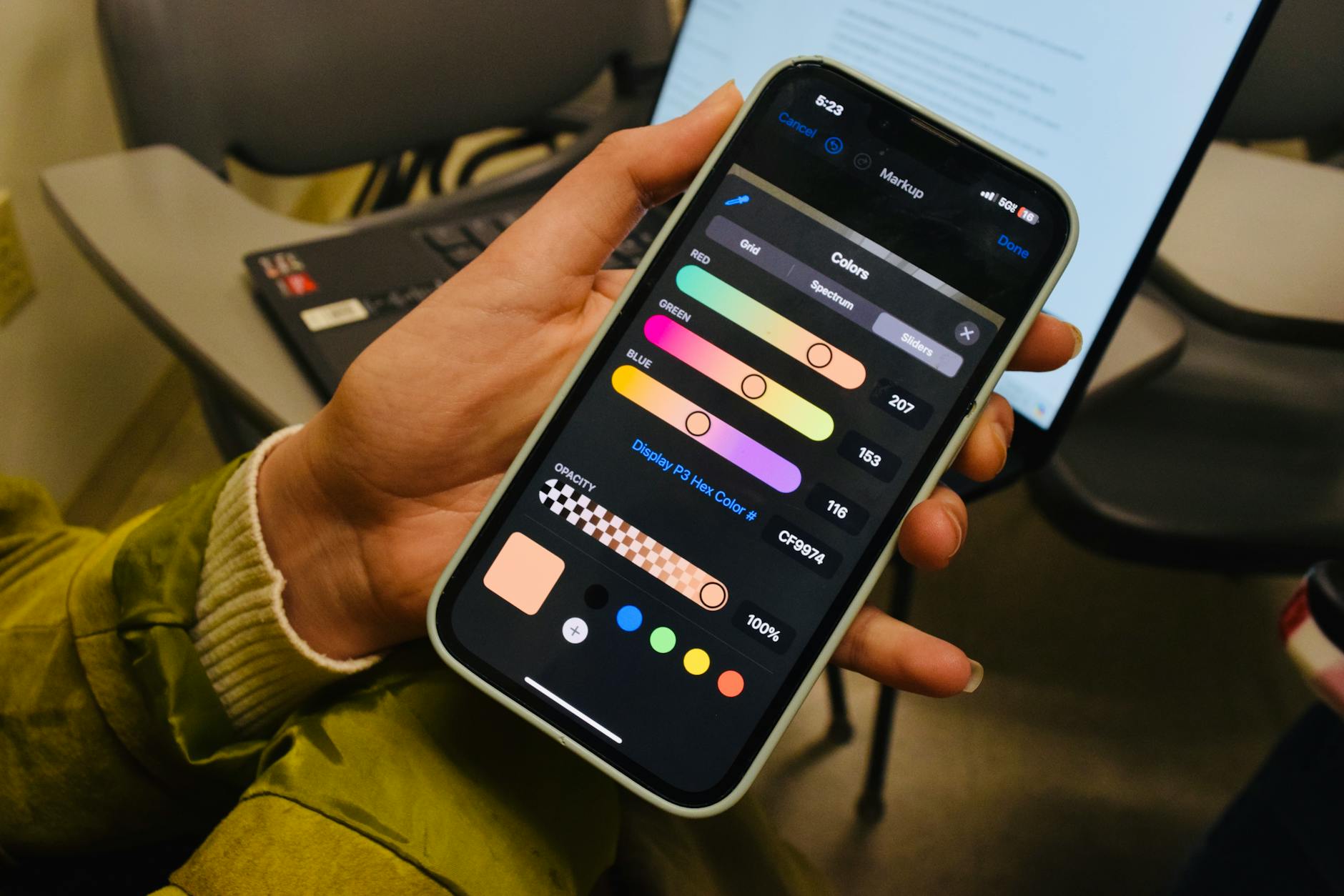
The Canva mobile app — available on iOS and Android — covers about 80 per cent of what the desktop editor does. For a quick Instagram post on the go, mobile is faster than waiting until you are back at a laptop. For a multi-page presentation or a complex flyer, desktop is faster.
What works the same on both: the template library, the search experience, the Brand Kit, the Magic Studio AI tools, photo upload and swap, text editing, font choice, the colour palette, and download. A design you create on mobile syncs to your desktop in seconds, and vice versa. The Canva account is the single source of truth, not the device.
What is harder on mobile: precise sizing (the touch controls round to 1 px when you want sub-pixel precision), multi-select (possible but fiddly), keyboard shortcuts (obviously), and any work that requires switching between many elements quickly. Magic Eraser and Background Remover both work on mobile, but the small screen makes precise touch-up frustrating. Desktop is the better surface for those.
What is better on mobile: shooting a photo or video directly into Uploads (tap Uploads > Camera, take the shot, it is on the canvas in two seconds), voiceover recording for Reels and Stories, design while standing in line or commuting. The mobile experience for short-form video is genuinely better than the desktop one because the input devices (camera, microphone, finger gestures for trimming) are closer to the medium.
Most Singapore SME owners I train run their business from a phone. Not by choice — by reality. The phone is in their hand from 7am to 11pm. The laptop opens twice a week. For that profile, the mobile app is enough to handle a week’s worth of social media, simple flyers and quick story posts. The desktop comes out for the monthly newsletter, the pitch deck, and anything that goes to print. If that describes your week, build the mobile workflow first and let the desktop be the heavy-lifting fallback.
Bulk Create and Whiteboard: the productivity features most users miss
These two features sit in the Apps menu, and almost nobody finds them on their own. They are the difference between using Canva like a hobbyist and using it like an operations team.
Bulk Create turns one template into hundreds of personalised versions using a CSV file. Imagine you have a list of 200 workshop participants and you need to print a certificate for each one. Without Bulk Create, that is 200 manual edits. With Bulk Create: design one certificate template, connect the “Participant Name” text element to a column in the CSV, click Generate, and Canva produces 200 individual certificates as one multi-page PDF in about 60 seconds. The same pattern works for name tags, personalised social posts, business cards for a new hire batch, conference signage and direct mail.
To use Bulk Create: open the app from Apps > Bulk Create in the editor side panel, paste or upload your CSV (or enter the data manually for short lists), right-click any text or image element on the canvas, choose Connect data, and pick the CSV column. Repeat for every element that needs to vary. Click Generate # designs when the connections are mapped. Bulk Create is a Pro feature.
I have personally used Bulk Create to print certificates for batches of trainees coming out of our SkillsFuture-eligible WSQ-funded courses. What used to take an afternoon now takes the time it takes to make a coffee. Of course the admin team is delighted.
Whiteboard is the second hidden feature. It is a collaborative ideation surface — an infinite canvas where multiple people can drop sticky notes, vote on ideas, draw rough flows, and run brainstorming sessions in real time. The Whiteboard design type sits alongside Presentation and Video in the Create a design menu. There is a built-in timer (great for time-boxed exercises), a voting tool (drop dots on the best ideas), and a sticky-note generator that can produce coloured notes by category in one click. For a training session, a workshop or a remote team brainstorm, Whiteboard is a viable replacement for Miro or Mural and the licensing is bundled into Canva.
For teams that want to combine Bulk Create with broader workflow automation — generating certificates from a Google Form submission, designs from a Notion database, marketing assets from a CRM — our Create Agentic AI Automations Without Coding course covers the orchestration layer that ties Canva into the rest of a business stack.
Designing for specific use-cases: Instagram, flyers, posters and more
Most Canva designs end up in one of four containers. A social media post. A printed flyer or poster. A presentation or document. A video. The workflow varies slightly for each.
Instagram posts. Pick the right preset before you start — Instagram Post (square, 1080 × 1080), Story (vertical, 1080 × 1920), or Reel (vertical, 1080 × 1920). Start from a template if it is your first one. Reuse a saved Brand Template if it is a repeat format. Export as PNG at the highest quality. For multi-photo carousels, design each slide on its own page in the same Canva file, then export as PNG with all pages included. Canva also has direct publish-to-Instagram and schedule-to-Instagram options inside Share, which skip the step of saving and uploading separately.
Flyers and posters. Start from the A4 document preset (or the Poster preset for larger sizes). Singapore uses A4, not US Letter — make sure the preset matches before you start designing, or your printer will reject the file. The most common beginner mistake is forgetting bleed for print. When designing for offset printing, add 3 mm of bleed using the Show print bleed option in File > Settings, and keep all important content inside the safe zone. Export as PDF Print with the CMYK colour profile and Flatten PDF ticked. Standard home or office laser print can use the simpler PDF Standard with RGB.
Presentations. Use the Presentation design type. Canva opens a 16:9 canvas with a multi-page panel below. Each page is one slide. Use the Notes panel (bottom of the editor) to add presenter notes. Export as PDF for sharing, or PPTX if your audience needs the PowerPoint format. For a deeper walk-through of presentation-specific tricks, see our guide on how to design a presentation in Canva.
Documents. Canva Docs is the document design type, with rich text, embedded designs and a clean A4 export to PDF. Use it for proposals, internal reports and one-pagers. For editable PDF work specifically, our guide on editing PDFs in Canva covers the PDF-import-and-edit workflow that is now built into the editor.
Resumes. The Resume design type comes with hundreds of ATS-friendly templates. Keep the layout single-column and use a clean sans-serif font if the resume will be scanned by an applicant tracking system. The full workflow is covered in our companion guide on building a resume in Canva.
Monetising your Canva skills. Canva itself can be a revenue source — selling templates on the Canva Creator marketplace, freelancing design work, building a side business around social media graphics. Spoiler: it is not passive income. But it is real income for people who put in the reps.
Course CTA: Canva Design Masterclass — our two-day classroom course covers everything in this guide and more, from templates and Brand Kit to Magic Studio and Bulk Create, with worked examples on real marketing assets. WSQ-funded for Singapore-based participants.
Closing
You now have the full picture of how to use Canva. What it is and where it fits. How to sign up and read the interface. How to build a first design in seven steps. How to work with templates, frames, photos and the background remover. How the 2026 Magic Studio AI tools sit inside the editor. How to add video and motion. What is different on mobile. The two productivity features almost nobody discovers. And how the workflow changes by use case.
I hope you will give it a try. Open canva.com today. Sign up. Run through the seven-step first-design walkthrough on a real piece of work — a social post for your business, a flyer for an event, a slide deck for a meeting on Monday. The skills compound fast. Twenty minutes the first time. Five minutes by the third. By the fifth design, the whole workflow becomes muscle memory and you stop thinking about the tool and start thinking about the message. That is when Canva stops being a tool and starts being a habit.