
How to Make a PowerPoint Presentation: Step-by-Step Guide for Beginners
To use PowerPoint to make a presentation, open the app, pick Blank Presentation or a template, and add slides one at a time from the Home tab using New Slide. Type an action title on each slide, add one supporting visual, set transitions on the Transitions tab, and run the deck from Slide Show > From Beginning. For a self-running deck, set Advance Slide > After on the Transitions tab. Sign up for our WSQ Basic PowerPoint Course if you want this taught in a one-day classroom.
I have been training PowerPoint and presentation skills in Singapore for 24 years, in classrooms full of working professionals who have to present to their boss next Monday. This guide is the same step-by-step we use with them: how to plan the deck before you open the app, how to start a new file, how to pick between a template and a blank canvas, how to design the slides, how to add content the right way, how to set up auto-advance for self-running displays, how to use Presenter View, and the common mistakes that show up in almost every real office deck. By the end you will have a complete, professional presentation — and you will know why each step matters.
What makes a presentation work (before you open PowerPoint)
The biggest reason most PowerPoint decks fail is simple. The person building them opened PowerPoint first and thought about the message second. A slide deck is the wrapping. The message is the gift. If the message is unclear, no theme, no animation, no stock photo of a smiling office will save it.
Before you click anywhere on the ribbon, write one sentence on a piece of paper. “After this presentation, my audience will know that ____.” That is your top-level message. It is like the destination on a taxi-receipt — once it is set, every turn either takes you closer or further away. Examples a manager might write:
- “Our division beat its quarterly target by 20 percent.”
- “We recommend opening a Penang office next year.”
- “Here is how a pivot table works.”
Every slide you build from this point on has one job — to support that single sentence. If a slide does not, cut it. Be ruthless. Managers can be quite demanding, and the senior people in the room will spot a slide that doesn’t earn its place within the first 10 seconds.
Once the top-level message is locked, list the three or four supporting points that make the case for it. These become your section slides. Add an opening slide that names the topic, and a closing slide that asks for a decision or a next action. That is the spine of the deck. You have not opened PowerPoint yet, and the work that decides whether the presentation lands has already been done.
In the 48,000+ working professionals we have trained over the last two decades, the same pattern shows up again and again. The people who present well are not the most articulate ones. They are the ones who decided on the message before they touched the slides. For a deeper dive on the delivery side of this, our Business Presentation Skills Training in Singapore course covers structure, voice, audience handling, and the stage-fright part that even senior managers struggle with.
How to start a new presentation in PowerPoint (step-by-step)
With the message decided, the actual creation of a new file takes under a minute. Do try it as you read along. Here is the step-by-step.

- Open PowerPoint. The Start screen appears, with template thumbnails across the top and a list of recent files below.
- Click New in the left pane. If you are already inside a file, go to File > New.
- Choose Blank Presentation for a clean white deck you will design yourself, or pick one of the suggested templates if a ready-made look fits the topic. We will compare the two in the next section.
- Save the file immediately. Press Ctrl + S. Give the file a sensible name like
Q3-Sales-Review-2026.pptx. Pick a folder on your computer or on OneDrive. If you save to OneDrive, AutoSave will then save every change for you in real time — fantastic for last-minute edits on the train to the office. - Add your first slide. A title slide is created by default. Click in the title placeholder and type the topic. Click in the subtitle placeholder and add your name, role, and the date.
- Insert the next slide. From the Home tab, open the New Slide drop-down (use the lower half of the button, not the upper half) and choose a layout. The most useful layouts in real working decks are Title and Content (for one big idea), Two Content (for a side-by-side comparison), and Section Header (to break a long deck into chapters).
- Continue slide by slide. Give each slide an action-style title that states the conclusion (“Sales grew 20% in Q3”) rather than a topic label (“Q3 Sales”). The title carries the message. The body just proves it.
If you would rather skim the broader topic before building from scratch, our pillar post on how to use PowerPoint covers the interface, file types, and ribbon layout in detail.
Picking a template vs. starting blank: which is right for your topic
Most beginners default to a template because the blank canvas feels intimidating. Most professionals default to blank because every template eventually gets in the way. Which one is right depends on the topic and the audience.
Use a template when the topic is light, the audience is external, and the content is mostly title slides, photos, and short bulleted lists. Templates are also useful when you are pressed for time and the deck only needs to look competent. The built-in PowerPoint templates have improved a lot in the last few years. A sober one with a clear hierarchy can carry a 10-slide deck without ever feeling generic.
Use Blank Presentation when the topic is data-heavy, the audience is internal, the deck will live longer than one meeting, or the content includes tables, screenshots, and side-by-side comparisons. Most templates fight you the moment you try to put a wide table or a complex chart on a slide. Starting blank, with your company’s font and a two-colour scheme, is faster than wrestling with a template that wants to fill every slide with a stock photo.
Whichever route you take, keep the deck consistent. One font family. Two or three colours. One accent colour for emphasis. Inconsistency reads as carelessness, even when every individual slide looks fine on its own. Your boss will notice. Your boss’s boss will notice more.
Designing slides: layouts, themes, and the Designer feature
Once a few slides exist, the design work happens in three places on the ribbon. The slide layout picker on the Home tab. The Themes gallery on the Design tab. And the Designer pane, also on the Design tab.

Layouts decide what placeholders a slide contains — title only, title and content, two content, comparison, picture with caption, section header, blank. Think of a layout like the seating chart at a wedding dinner — it decides where each thing sits before the food (the content) arrives. Change a slide’s layout by selecting it in the thumbnail pane on the left, going to Home > Layout, and picking a different option. The slide keeps its content. Only the placement of the placeholders changes. Use Title and Content for the majority of slides, Section Header to break up a long deck, and Blank when you want full control.
Themes decide the overall look of the deck — the fonts, the colour palette, the background, and the placement defaults. Go to the Design tab to see the built-in themes. Hover over each one to preview it on your current slide. Pick one that fits the audience: corporate audiences want restrained, conference audiences will tolerate bolder. Once a theme is chosen, the Variants gallery on the same tab gives you three or four colour variations of the same theme. Pick one and stick with it for the whole deck.
Designer (also called Design Ideas) is the AI-assisted layout suggester. As you add content, a Design Ideas pane opens on the right with two to four nicely laid-out alternatives. Click any of them to apply it. Designer is strongest on title slides, photo-heavy slides, and bulleted lists. It is weaker on charts and tables — those still need a human eye. There is no one-click “Designer on all slides” button, and that is by design. Every slide needs a human glance, because Designer will occasionally make a slide look polished but say the wrong thing.
For working professionals who want to go further and let AI draft whole decks from a prompt, our Word, Excel & PowerPoint with Copilot in Microsoft 365 course covers Copilot’s ability to generate, edit, and redesign a complete deck in minutes.
Adding content: text, images, charts, tables
A slide is a canvas with four things on it most of the time. Text, images, charts, and tables. Each one has a right way to add it and a wrong way that creates clean-up work later.
Text. Click into a title or content placeholder and type. Keep the title to one line. Keep the body to short, scannable lines — no full paragraphs of prose. For formatting, use the Font section of the Home tab. Pick one heading font and one body font and stick with them across the deck. Resize using Increase Font Size and Decrease Font Size rather than typing a number, so the deck stays on a consistent type scale. Use Bullets or Numbering for lists. Do not press Enter and tab to fake a bullet — that will fall apart the moment the slide is reformatted.
Images. Go to Insert > Pictures and pick This Device for a file on your computer, Stock Images for a curated Microsoft library (Microsoft 365 subscribers), or Online Pictures for a Bing image search. Once the image is on the slide, drag a corner handle to resize it. Corners keep the aspect ratio. Side handles distort the image — avoid them unless you actually want the picture stretched. Right-click the image and choose Compress Pictures before sending the file by email. A deck with five uncompressed photos can balloon past 25 MB very quickly, and your IT-blocked inbox will reject it.
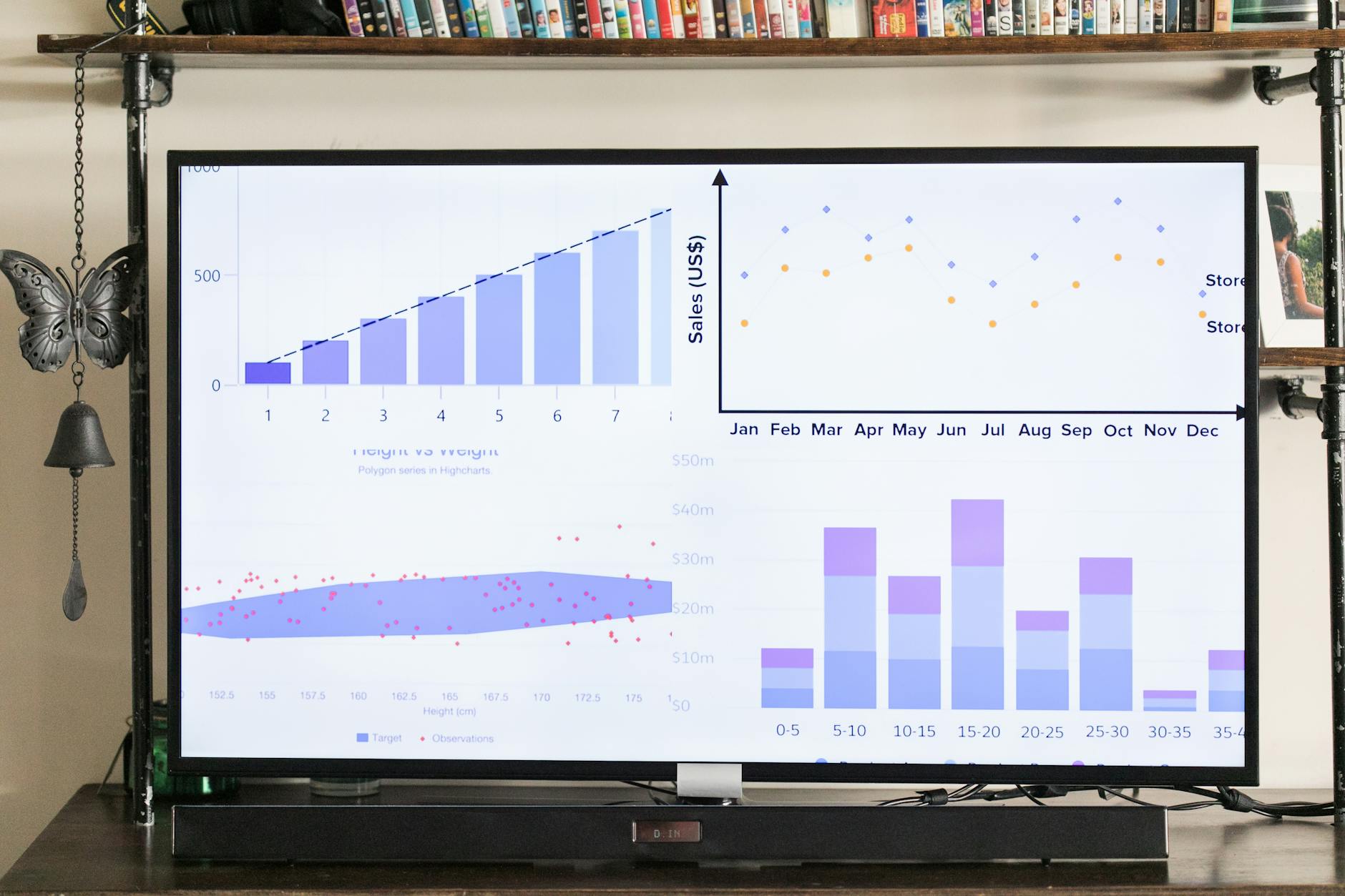
Charts. Insert > Chart opens a small Excel window where you can type or paste your data. The chart on the slide updates as you edit. For a chart already living in an Excel workbook, copy the chart in Excel and paste it into PowerPoint with Paste Special > Link if you want the slide to update when Excel changes, or with the default paste if you want a static snapshot. Static is usually safer when you are about to email the file to a client.
Tables. Insert > Table opens a grid picker. Drag to set the dimensions, then click to insert. The Table Design tab on the ribbon gives you preset table styles, banded rows, and a header row. Keep table cells short. No full sentences. If the table has more than six columns or twelve rows, it is too dense for a slide — move the detail to an appendix slide or to a follow-up A4 handout.
For decks that need to come alive in the room, see our companion piece on how to add animations in PowerPoint. Animations are out of scope here, but they fit naturally on top of the content layer once the slide is built.
Slide flow: transitions and auto-advance for self-running decks
This is the section most PowerPoint tutorials skip. And this is the section that actually unlocks the more interesting uses of the tool. Take a moment with this one.
A transition is the visual effect that plays when PowerPoint moves from one slide to the next — a fade, a wipe, a push, a morph. To add one, select the slide in the thumbnail pane, go to the Transitions tab, and click the effect you want. Click Apply To All if you want every slide to use the same transition. Do use Apply To All — mixing transitions across one deck looks chaotic, like a meeting where everyone is speaking a different language. Keep the duration short, around 0.5 to 1 second. Long transitions are tiring to watch.
Auto-advance is the setting that moves the deck to the next slide on its own after a fixed number of seconds, without you clicking the mouse. This is the foundation of self-running presentations, lobby displays, and trade-show kiosks. Here is the setup, step by step.
- Select the first slide in the thumbnail pane on the left.
- Go to the Transitions tab on the ribbon.
- In the Advance Slide section on the right, untick “On Mouse Click” and tick “After”.
- Set the duration. Typically 5 to 10 seconds for an information slide. 15 to 30 seconds for a slide with a chart. Longer for a slide with detailed text. Read the slide out loud at a normal pace — that is roughly the time the audience needs to read it themselves.
- Click Apply To All if every slide should use the same timing. If different slides need different durations, leave Apply To All alone and adjust each slide individually.
- Press F5 (or click Slide Show > From Beginning) to test the timing. Adjust upward if the deck feels rushed. Adjust downward if it drags.
For a slide that contains a video and should only advance after the video finishes, set Advance Slide > After to a duration just longer than the video’s run time. Then right-click the video and set its playback option to Start Automatically. The slide will hold while the video plays and move on once it ends. How good is that?
To turn the whole deck into a self-running loop suitable for a trade-show booth or a lobby screen — kiosk mode — go to Slide Show > Set Up Slide Show > Browsed at a kiosk (full screen) and click OK. Combined with auto-advance timings on every slide, the deck now plays end-to-end, loops back to the start, and ignores mouse clicks. Press Esc on the keyboard to break out. This is the setup we use in our WSQ PowerPoint class with marketing and events teams in Singapore who need a booth deck ready by Friday.
Course CTA: WSQ Basic PowerPoint Course — our one-day classroom course, covering slide design, transitions, auto-advance, and self-running decks for working professionals in Singapore. WSQ-funded, ACTA-certified trainers, eligible for SkillsFuture credit.
Speaker notes and Presenter View setup
Speaker notes are the script you write for yourself underneath each slide — the things you want to say but do not want to put on the slide. The audience never sees them. You do. It is like having a small invisible cue card taped to the bottom of the screen, which only you can read.
To add notes, click the Notes button at the bottom of the editing window (or go to View > Notes). A pane opens below the slide. Type whatever you want to remember when you present — the talking points, the transition line into the next slide, the answer to the question you know your boss will ask. Keep the notes in plain prose, not as another set of bullet points. You are writing for yourself, not for another slide.
Presenter View is the dual-screen layout that shows your current slide on one screen (the projector) and your notes plus a thumbnail of the next slide on another screen (your laptop). To enable it, go to the Slide Show tab and tick Use Presenter View. When you start the slide show with two screens connected, PowerPoint sends the slides to the projector and the notes to your laptop automatically. Microsoft’s official walk-through is on the Microsoft Support Presenter View page.
A short story on why this matters. A senior director walked into our office one evening, asking for presentation training. We told him our next public class was in two weeks. He needed it sooner. When? Tonight. His firm had submitted a major technical tender, and the client wanted to hear the proposal directly from the engineers who would do the work — not from the director. The engineers were brilliant technically, but tongue-tied when they had to speak. They trembled. They could not get the words out. He brought them to our office that evening and we coached them for three to four hours straight — how to stand, where to look, how to pause, how to build a tight slide deck, how to use the Presenter View notes as a safety net. We stayed past four hours getting them to practise. The next morning they presented well. They won the deal. The lesson is small and unglamorous: step-by-step coaching works, everyone feels nervous, and the skill is in the rehearsed-confidence part — the hands, the eyes, the pause, the slowing down. Speaker notes are part of that safety net.
Presenter View also gives you a timer, a pen tool for drawing on the slide live, and a zoom tool for highlighting a small area of the current slide. For anyone presenting in a hybrid meeting room or a conference setting, the pen and the zoom turn an ordinary deck into an interactive walk-through. Our companion guide on how to use Presenter View in PowerPoint covers the dual-screen setup and the on-screen tools in detail.
Common mistakes (and the 3-slide test)
After 24 years of running PowerPoint classes in Singapore, the same six mistakes show up again and again. They are not bugs in PowerPoint. They are habits. And every one of them is reversible in five minutes if you know what to look for.

1. Topic titles instead of action titles. “Q3 Sales” tells the audience what the slide is about. “Sales grew 20% in Q3” tells them what the slide says. Action titles do most of the work. The rest of the slide is supporting evidence.
2. Too much text per slide. If the audience is reading the slide, they are not listening to you. Keep each line to one short sentence. Anything longer belongs in the speaker notes or in a handout.
3. Decorative animations and transitions. Spinning text, bouncing bullets, page-curl transitions — these were briefly novel in 2003 and have been distracting ever since. Pick one subtle transition for the whole deck (Fade or Push works well) and use animations only when they actually clarify something, like building up a process flow step by step.
4. Inconsistent fonts, sizes, and colours. Three different title sizes across ten slides reads as careless. Pick one heading size, one body size, one accent colour. Apply them everywhere. Use the slide master (View > Slide Master) to set the defaults once, so the whole deck inherits them.
5. Tiny text. A font smaller than 24 points is unreadable from the back of a meeting room. If the content does not fit at 24 points, the slide is doing too much — split it across two slides. The audience at the back can be quite demanding too.
6. No closing slide with a next step. A deck that ends on the last data slide leaves the audience guessing what to do next. Add a final slide with one of: a clear decision being asked for, a concrete next action, a contact line, or a summary of the top-level message in one sentence.
The fastest way to audit your own deck before you present is the 3-slide test. Open the deck in Slide Sorter view (View > Slide Sorter) and look at the title slide, the middle slide, and the last slide side by side. If you can guess the message of the whole deck from those three, the deck has a spine. If you cannot, the message is hiding — either rewrite the action titles so the spine is visible, or reorder the slides until the story carries.
The deck is now ready to present. Save the file one more time (Ctrl + S). Check the slide count. Click Slide Show > From Beginning. And run through it once on your own, out loud, before you present it to anyone else. I hope you’ll like this approach — do try it on your next deck, even just the message-on-paper step. You will feel the difference the moment you open PowerPoint the second time round, with the spine already decided.